If a laptop works on one connection but not another, that is useful evidence—not proof that its Wi-Fi card needs replacement. This guide helps IIT Roorkee students distinguish a device problem, a single-website issue and a campus account or network issue. It provides a controlled comparison worksheet and a useful support brief. It does not describe the current institute network configuration or replace official IT instructions.
Before you decide
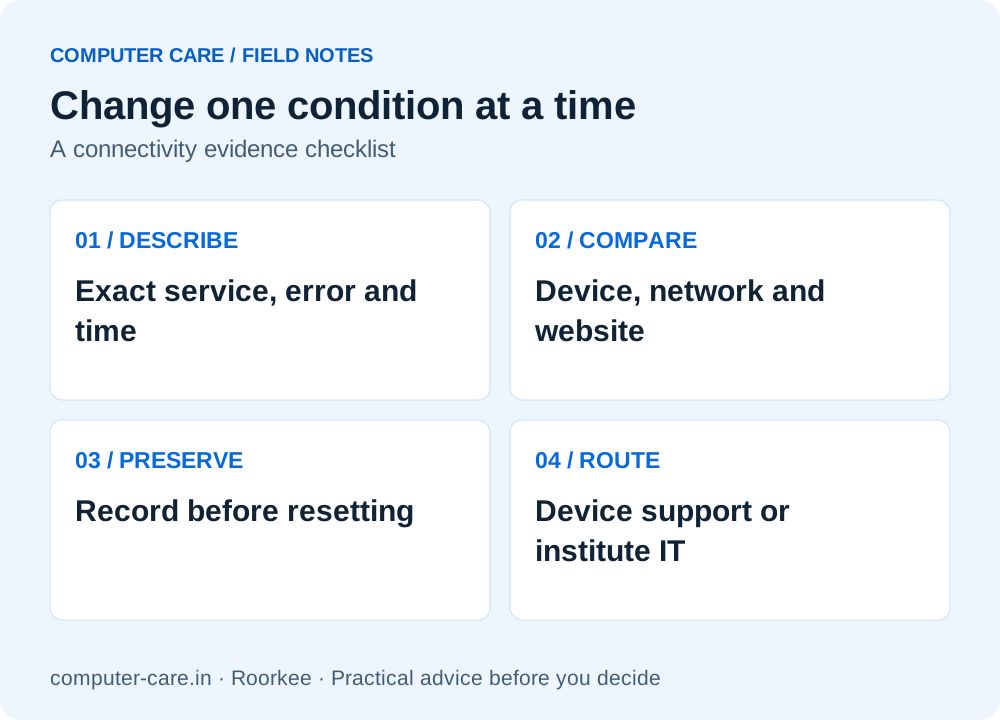
- Compare the same website, device and time period while changing one condition at a time.
- Keep exact error text, timing and adapter/software details before resetting settings.
- A campus account, access restriction or infrastructure fault belongs with institute IT; a shop cannot grant access.
- Do not buy a network adapter or reinstall Windows merely because one campus portal fails.
A real local question, with a limited conclusion
A public IITR community question describes institute sites failing on a laptop over campus Wi-Fi while other sites or another connection work. This illustrates a useful symptom pattern; the replies are not an official diagnosis and do not establish that every similar problem has the same cause.
Separate observation from explanation. “The portal failed at this time on this connection” is an observation. “The laptop needs a new Wi-Fi card” is a diagnosis that needs evidence. Record the first accurately before spending money on the second.
The institute’s current helpdesk instructions, authentication requirements and approved network settings take priority for campus access. Use the official IIT Roorkee Institute Computer Centre resources as a starting point. Do not send passwords, OTPs or private account information to public forums when asking for help.
Use a controlled comparison, not a chain of random fixes
| Comparison | Record | What it can narrow down |
|---|---|---|
| Same laptop, same website, different permitted connection | Works/fails, exact time and error | Whether the symptom follows that connection |
| Same connection, different permitted device | Same test within a similar time window | Whether more than one device is affected |
| Same laptop and connection, different website | Which services work and which fail | One service versus broader access |
| Same device, another browser or app | Result without changing multiple settings | A browser/app-specific symptom |
| Same laptop, different location on the permitted network | Signal/connection behaviour and timing | A location-dependent symptom; not proof of a cause |
Use only connections and devices you are authorised to use. Mobile data may have costs, so check before using it for a comparison. Do not treat a successful hotspot test as a permanent approved substitute for institute access, and do not assume a result taken hours later proves what happened earlier.
If a comparison is not possible, record that limitation rather than inventing a result. The goal is a short reproducible description for support, not an elaborate spreadsheet of unreliable tests.
First checks on the laptop
Check whether Wi-Fi is enabled, whether airplane mode is on, and which network is connected. Record the exact error and whether it appears before or after authentication. Check the date/time and whether the problem is limited to one application. If you use a personal VPN, proxy or custom network configuration, record it; ask official support which settings are appropriate for the network.
Microsoft’s Windows Wi-Fi troubleshooting guide distinguishes connection issues from app/website-specific issues and provides version-specific steps. Use the instructions matching your system. Do not make several changes at once, because a later successful connection will not tell you which change mattered.
For a missing or failing adapter, note the laptop model, operating-system version, adapter name and any visible device error. Obtain drivers through the appropriate manufacturer route rather than installing an unrelated driver package from a search advertisement.
Only an institute website or portal fails: what to report
Record the exact service address and visible error text, with the time and connection used. Does the browser show a connection error, an authentication failure or a page served by the site? Does the problem occur after login? Can you reach other ordinary sites? Remove personal identifiers from any screenshot shared publicly.
Provide that short comparison to official support. A shop can help investigate local browser, adapter or device settings, but cannot determine account eligibility, grant institute permissions or repair a campus server. Do not present a forum workaround as a policy-approved setting.
Do not bypass a browser certificate warning to make a test succeed. Report the warning through the appropriate support route. Similarly, do not disable security software or use unapproved DNS/VPN settings simply because an anonymous reply suggests it. The next step should fit the observed symptom and official requirements.
Before a network reset or Windows reinstall
Microsoft’s wireless troubleshooting documentation recommends collecting the baseline and reproduction time before changes such as network resets, profile deletion or adapter removal. This is useful because a broad reset can change the state that support needs to understand.
Microsoft’s consumer guide describes network reset as a later step; it can require setting up networking software again. Check that you have the approved connection instructions, relevant settings and a way to obtain help before proceeding. On an institute-managed computer, ask the administrator rather than changing managed settings.
A full Windows reinstall is broader still. It affects applications and may affect files, licences and configuration. Ask what evidence makes it necessary and agree backup/data handling first. A single portal failure alone does not demonstrate that reinstalling the entire operating system is the right intervention.
Who should handle the issue?
| Situation | Useful next route |
|---|---|
| Campus login, account eligibility or access permission | Official institute IT/account support |
| Several devices fail on campus at the same time | Report timing, service and location to institute support |
| Laptop fails across several permitted networks | Device/adapter/OS diagnosis with manufacturer or computer support |
| Only one app or browser fails | Application-specific investigation with a record of settings and errors |
| Physical damage or an adapter missing with an error | Model-specific device diagnosis before buying a part |
| Institute-managed equipment | The responsible administrator before independent changes |
This table assigns a practical first contact; it is not a remote diagnosis. Some problems involve more than one layer. A good support brief makes it easier for the right person to investigate without paying for unrelated work.
For local help, call Computer Care with the model and your comparison notes. Bring the device if inspection is agreed. Do not share campus credentials with a public enquiry or ask the shop to bypass access restrictions.
A five-line brief to bring to the shop
- Device: full laptop model, OS version and wireless adapter if available.
- Symptom: exact error or observable failure, with no guessed cause.
- Timing: when it started and whether it follows sleep, updates, a location or a particular application.
- Comparison: which permitted device/network/website tests worked or failed.
- Changes: settings or software changed already, plus any official support advice received.
Computer Care offers computer networking advice and laptop troubleshooting from its shop near IIT Roorkee Century Gate. Call +91 99278 65808; open daily 9am–7pm. Confirm the scope and any inspection charge. Campus infrastructure and account administration remain with the institute.
SAVE FOR LATER
Change one condition at a time
YOUR QUESTIONS, ANSWERED
Useful details before you call
My laptop works on a hotspot but not campus Wi-Fi. Is its Wi-Fi card broken?
That result does not establish a failed card. Record the exact service and error, compare carefully and contact the appropriate support route. Network, account, application and device settings can require different investigations.
Should I change DNS or install a VPN to open a portal?
Use current official institute instructions. This guide does not prescribe network settings or a bypass for campus access restrictions. Record your configuration and ask support.
Can Computer Care reset my IIT Roorkee account?
No account-administration capability is claimed. Use official institute support for credentials, eligibility, permissions and campus infrastructure.
Should I reinstall Windows for a Wi-Fi problem?
Only after a supported diagnosis justifies it and your backup/data plan is agreed. One portal failure is not sufficient evidence for an OS reinstall.
What should I capture before a reset?
Exact error, time, laptop/OS/adapter details, connection used and results of controlled comparisons. Keep credentials and personal identifiers out of public screenshots.
Can I use another student’s account for testing?
Use only authorised devices, accounts and connections. Do not borrow credentials or bypass the institute’s access rules.
What if the laptop is managed by the institute?
Contact its responsible administrator before changing managed settings, removing adapters or reinstalling software.
Do you have a tested fix for every IITR Wi-Fi issue?
No. This is a decision and evidence-collection guide, not a claim to have tested the current campus network or diagnosed every fault.
Sources & further reading
Research checked 8 Nov 2026. Community and directory questions help identify topics; technical guidance comes from the named documentation. They are not evidence of Computer Care prices, inventory or service terms.
- Microsoft: consumer Wi-Fi troubleshooting ↗Primary documentation; checked 8 Nov 2026
- Microsoft Learn: preserve wireless baseline before changes ↗Primary documentation; checked 8 Nov 2026
- IIT Roorkee ICC: official resource starting point ↗Primary documentation; checked 8 Nov 2026
- IITR community: a laptop and campus-portal symptom report ↗Question discovery only; not official network configuration or a verified diagnosis