An upgrade should solve a particular limitation in a computer that still suits your work. Before buying a RAM module, SSD, charger or display, establish the exact model, the supported part and the result you expect. This guide gives IIT Roorkee students and other Roorkee buyers a compatibility worksheet, a way to compare complete quotes and a practical test plan. It avoids universal speed promises and components chosen only because their connectors look familiar.
Before you decide
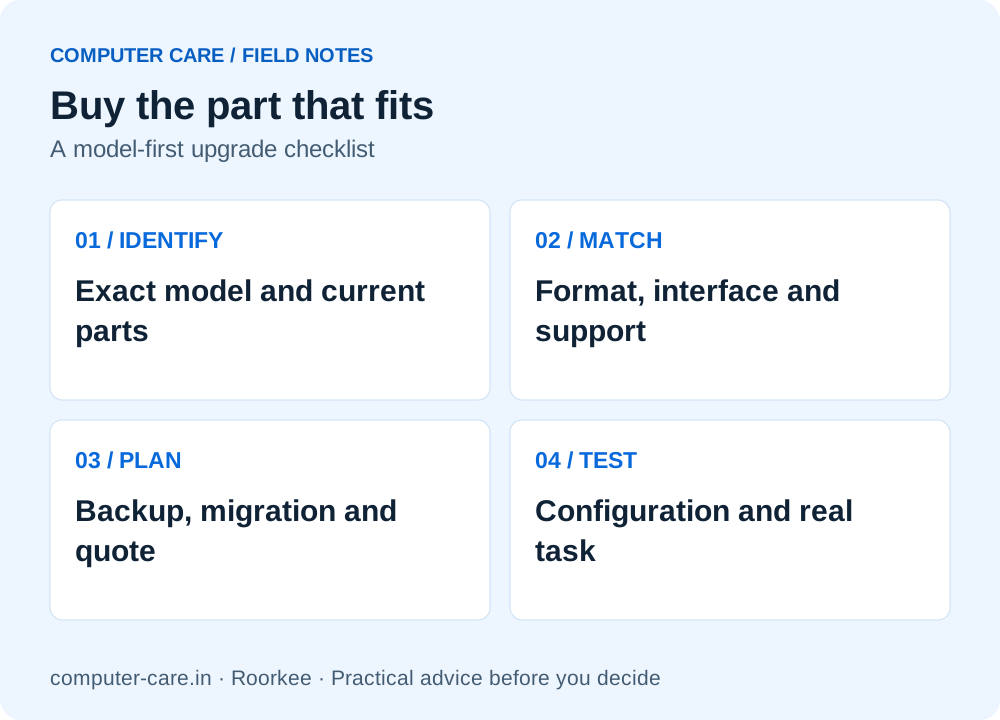
- Record the full computer/motherboard model and consult its current manufacturer specifications.
- DDR generation, physical format, capacity and platform support all matter; an M.2 shape alone does not establish SSD compatibility.
- Include installation, migration, accessories and written part coverage in the quote.
- Keep a backup and use the same real task before and after work to judge the result.
Is it RAM, storage, software or something else?
Describe the problem as a task: “my development project becomes unresponsive with these applications open” is more useful than “I need more RAM”. Record what is running, available storage and any error. If the same slowdown appears only on one website or network, separate the connectivity question before assuming the computer needs a part.
RAM capacity can limit the amount of active work; storage capacity limits the files and software you can keep. A storage fault is different from simply wanting more room. A processor, graphics or software-compatibility limit may remain after either upgrade. Ask the technician what evidence connects the proposed part to the problem.
Bring a repeatable, non-confidential task that represents your work. A useful comparison keeps software versions, project files, power source and background work similar. A single advertised maximum or a benchmark from another machine does not establish the improvement you will get.
Before you buy: collect these compatibility details
| Category | Write down before asking for a quote |
|---|---|
| Computer identity | Exact model, product/service reference and manufacturer specification page |
| Current RAM | Capacity, module configuration, DDR generation and supported physical format |
| RAM expansion | Soldered vs replaceable memory, slot arrangement and supported maximum |
| Current storage | Drive model, capacity, form factor, interface and whether it is the boot drive |
| Storage expansion | Supported socket/interface, drive length, free bay and required mounting hardware |
| Power and display | Manufacturer-approved power requirement, port capability and exact panel/monitor specification |
| Work and budget | The task to improve and maximum complete cost including installation/migration |
A laptop family name can cover several configurations. Use the exact unit’s documentation rather than a video about a similar model. If you are unsure, bring the model information to the shop and ask for compatibility confirmation before purchasing or opening the device.
For a desktop, the motherboard model, processor, firmware and case clearances can all matter. Check the complete configuration instead of choosing parts independently. An apparently compatible component may still require a different power supply, mounting part or firmware support that changes the total cost.
RAM: capacity is only one part of compatibility
Check the supported memory generation and module format first. Corsair’s RAM FAQ confirms that DDR4 and DDR5 are not interchangeable. A capacity label such as “16 GB” does not identify a compatible replacement by itself. Confirm the supported speed, module arrangement and capacity against the exact system documentation.
Ask whether the laptop has replaceable modules, soldered memory or a combination, and whether an “upgrade to 16 GB” means adding a module or replacing what is installed. Have the quote record the resulting total and the supplied part number. Do not assume that every laptop with the same processor has the same memory layout.
If you run several demanding tools, consult the published software RAM table in our student buying guide. Those values are application requirements, not a promise that adding memory gives a particular percentage improvement. The useful question is whether your actual task is limited by available memory and whether the supported upgrade addresses it.
After installation, verify the detected capacity and the agreed configuration. Repeat the workload that exposed the limitation and ask what stability checks were completed. Keep the invoice and part coverage; “the laptop starts” is a narrower check than “the supplied memory is stable for my normal work”.
SSD: M.2 is a shape; SATA and NVMe describe different interfaces
Kingston’s explanation of M.2 SATA and NVMe distinguishes form factor from the communication interface. Do not assume that every M.2 drive will work in every M.2 slot. Check the system’s supported interface, drive length, mounting point and any relevant firmware/boot restrictions.
| Detail | Why it matters |
|---|---|
| Form factor and dimensions | The drive must physically fit and be secured correctly |
| SATA or PCIe/NVMe support | A similar-looking socket does not prove the required protocol is supported |
| Capacity and existing drive | You need to know whether the proposal adds storage or replaces the boot drive |
| Migration or fresh setup | The plan determines what happens to applications, files and licences |
| Mounting and accessories | Caddy, screws, cable or enclosure may be separate items |
| Exact SSD and warranty | Capacity alone does not identify the product or its written support terms |
A maximum sequential transfer figure describes a particular advertised operation under stated conditions. It is not the time your code will take to compile, the frame rate in a game or the speed of every file copy. Ask whether the platform can use the proposed drive’s interface and whether paying for a higher specification is relevant to your task.
Capacity is also different from free space. The operating system, recovery partitions, applications and existing files occupy part of a drive. Ask for the completed setup’s available space, not only the capacity printed on the packaging.
Why a storage number can look smaller: GB and GiB
NIST defines one decimal gigabyte (GB) as 1,000,000,000 bytes and one binary gibibyte (GiB) as 1,073,741,824 bytes. The same bytes therefore produce different numeric values in the two units. This is separate from space occupied by partitions, software and files.
| Decimal capacity | Same bytes in binary units |
|---|---|
| 256 GB | 238.42 GiB |
| 512 GB | 476.84 GiB |
| 1,000 GB | 931.32 GiB |
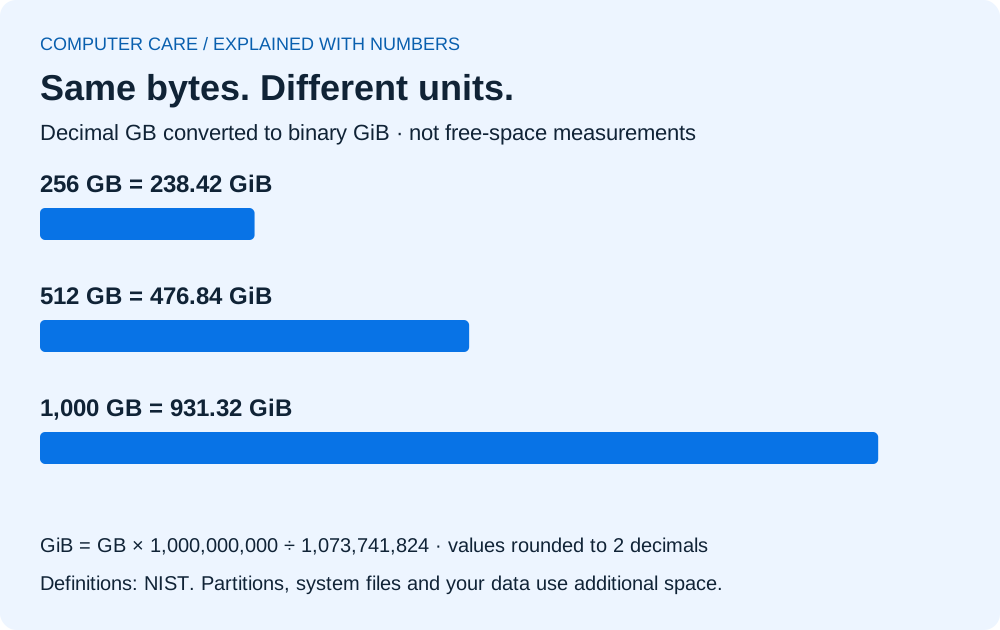
The formula is GiB = GB × 10⁹ ÷ 2³⁰. Do not interpret the difference as a performance score or assume it explains every missing byte on a specific machine. For an actual upgrade, compare the installed drive’s identity, partitions and available space after setup.
Chargers, USB-C hubs, screens and peripherals
For a charger, identify the laptop model and the manufacturer power specification. Confirm the supported connector and charging method; a plug fitting is not a complete compatibility check. Ask whether the supplied adapter and cable are appropriate for the device and whether any limitations remain under load. Do not substitute a random charger simply to see whether it works.
For a USB-C hub or display adapter, name the job: charging, external video, data transfer or several functions together. Check both the laptop port’s capabilities and the accessory’s specification. Similar physical ports can provide different supported functions. Include the cable, monitor inputs and intended display setup in the question.
For a laptop display, record the exact model and the intended resolution, touch capability and other relevant features. For a keyboard or battery, confirm the matching part reference and condition. Ask what testing will happen after installation and what coverage applies to that component.
Before buying a printer cartridge or other consumable, use the full printer model and the required consumable reference. “HP printer ink” is not enough information. Visit the computer accessories page and call ahead with the details so availability can be checked.
Planning desktop parts or a student workstation
A desktop upgrade or new build needs a full compatibility plan: processor and motherboard support; memory specification; storage interfaces; graphics; case clearance; power supply; cooling; and the monitor/peripherals required to use it. List the applications and the complete budget first. Avoid spending most of the budget on one part and discovering that essential supporting components are missing.
If the machine is for a room rather than daily travel, compare the total workstation with a laptop. Include a monitor, keyboard, mouse, networking and appropriate power equipment. Think about where your files will be when you need to work in class, the library or at home. A powerful desktop does not itself solve portability.
Use custom PC assembly planning to discuss a coherent configuration. For an existing system, bring the motherboard and power-supply details; for a new build, request the exact component list rather than a processor badge and a total price.
Backup and migration: agree the destination before opening the device
Before any storage work, make a separate backup and open sample files from it. Include project dependencies, local databases, browser exports you actually need and folders outside the standard locations. Do not assume that copying one folder preserves an entire development environment or every software licence.
Agree whether the job is cloning, copying selected files or creating a fresh installation. Ask which drives are involved, what will be erased, which applications will need reinstalling and how the old drive will be returned or handled. If a drive is failing, discuss the risks and limits before repeatedly testing or writing to it; an upgrade is not the same service as data recovery.
If encryption or an account is involved, keep recovery information under your control and use the appropriate manufacturer instructions. Ask whether testing can occur with a limited test account or in your presence. The shop should have a clear, agreed purpose for any access it needs.
Compare a complete upgrade quote with replacement
| Line item | What should be explicit |
|---|---|
| Part | Exact manufacturer/model, capacity and condition |
| Compatibility | Which exact computer configuration was checked |
| Installation | Labour, mounting parts, cables and any supported firmware work |
| Migration | Which files/drives and what is excluded |
| Testing | The original task and configuration checks after installation |
| Support | Written part/work coverage and who handles a claim |
| Old components | Which parts or storage will be returned |
| Total | All required costs before deciding against a replacement |
Compare the result with a suitable new or refurbished replacement, especially if the current computer also has physical damage, an unsuitable platform or several other limitations. A modest upgrade can be worthwhile, but money already spent should not force the next purchase.
For parts and upgrade enquiries in Roorkee, call Computer Care on +91 99278 65808. Share the exact device model and proposed part before travelling. The shop is near IIT Roorkee Century Gate, open daily 9am–7pm. Stock, installation arrangements and prices need direct confirmation.
SAVE FOR LATER
Buy the part that fits
YOUR QUESTIONS, ANSWERED
Useful details before you call
Can I install DDR5 RAM in a DDR4 laptop?
No. These memory generations are not interchangeable. Check the exact system documentation for the supported generation, format, capacity and arrangement.
Can every laptop be upgraded to 32 GB?
No. Memory may be soldered or limited by the supported configuration. Check the exact model rather than the processor family alone.
Does an M.2 slot mean any NVMe SSD will fit?
No. Confirm the supported interface, physical dimensions, mounting and platform/boot support. M.2 by itself describes a form factor.
Will a faster SSD improve gaming or coding by the advertised transfer ratio?
That cannot be inferred from the transfer specification. Real tasks depend on the workload and the rest of the system. No measured speed-up is claimed here.
Will my files stay after an SSD upgrade?
Only an agreed migration or backup/restore plan establishes what will be copied. A replacement drive does not automatically contain the old files or applications.
Can I use any USB-C charger or hub?
Check the device and accessory specifications for the exact charging, video and data functions needed. Physical fit alone is insufficient.
Can I buy parts without installation?
Ask Computer Care about the specific product, compatibility, current stock and sale/installation terms. This guide does not promise that every component is available.
What should I test after an upgrade?
Verify the agreed configuration, repeat the original task, inspect the relevant functions and confirm access to any agreed migrated files. Keep the written quote and coverage details.
Sources & further reading
Research checked 8 Nov 2026. Community and directory questions help identify topics; technical guidance comes from the named documentation. They are not evidence of Computer Care prices, inventory or service terms.
- Corsair: DDR generations and RAM compatibility ↗Primary documentation; checked 8 Nov 2026
- Kingston: M.2 SATA versus NVMe form factor and interface ↗Primary documentation; checked 8 Nov 2026
- Kingston: desktop/notebook memory support ↗Primary documentation; checked 8 Nov 2026
- NIST: decimal and binary prefix definitions ↗Primary documentation; checked 8 Nov 2026