A laptop failure is harder to manage when your notes, code and submission are on the same machine. The first useful step is to record what the laptop actually does, protect accessible work and agree the scope of diagnosis. This guide helps students in Roorkee prepare for a repair visit, compare a repair with an upgrade or replacement, and test the result. It does not diagnose your laptop remotely or promise a fixed turnaround.
Before you decide
- A black screen, no power and a failure to load Windows are different symptoms; record the exact sequence.
- Protect accessible coursework first and agree what may happen to the storage before a reinstall or replacement.
- Request a diagnosis, itemised quote, parts description and realistic timing before approving work.
- Collect the device with a repeatable test of the original problem, not just a power-on check.
First response: preserve the work and describe the symptom
If the computer still works normally enough to copy files, put irreplaceable coursework in a separate location and open a sample from that backup on another device. Include the working project, not only the exported PDF: source code, CAD dependencies, notes, references and any files outside the usual Documents folder. A sync icon alone is not evidence that every required file is safely available.
Write down when the problem began, what changed immediately before it, and the exact sequence after pressing the power button. Photograph error text or a blink pattern. Record whether the fault happens on battery, external power, one application or every application. Do not repeatedly force a failing or visibly damaged computer through tests simply to gather more evidence.
If a deadline is near, tell the person receiving the laptop before authorising a repair. Separate three questions: how long diagnosis may take, whether a compatible part is available, and when completion can realistically be confirmed. Ask your department about an approved temporary way to access work; do not assume the shop provides a loan device.
Use the right description: no power, no POST, no boot or no display
Dell’s startup troubleshooting guide distinguishes power, power-on self-test, operating-system boot and video problems. The labels below help communicate observations; they are not a diagnosis for every brand or model.
| What you see | What to report | What not to assume |
|---|---|---|
| No apparent response | Lights, fan, charger indicator and any recent power event | That the motherboard must be replaced |
| Lights or beeps, no usable startup | Exact blink/beep pattern and model | That reinstalling Windows will fix it |
| Logo appears; OS will not load | Last visible screen and exact error | That all files are lost |
| Computer seems active; screen is blank | Whether the fault follows lid movement or a known display connection | That the screen alone is the failed part |
| Only one application fails | Application version, file and reproducible action | That all hardware needs an upgrade |
Do not buy a replacement motherboard, display or storage drive solely from a symptom checklist. Several causes can produce a similar experience. Ask what test supports the proposed repair and whether that test distinguishes the suspected component from a power, cable, software or peripheral issue.
Charging, charger and battery problems
Bring the charger used when the problem occurs. Report whether charging stops at a particular cable position, whether the charger is recognised, whether the computer shuts down when unplugged, and whether the problem started after a charger replacement. Inspect visible cable damage without trying improvised wiring or repeatedly bending the connector.
A replacement should match the laptop’s manufacturer power specification and supported charging method. A connector fitting physically does not establish compatibility. Ask for the proposed part’s identifier and whether its condition is new, used or refurbished, plus its written warranty terms.
For battery condition, use the model’s own supported tools; Dell documents several battery-health checks. A reported condition or capacity is useful evidence, but it is not a guarantee of runtime under your workload. If the case, touchpad or battery appears swollen, stop using and charging the device and contact qualified support. Dell’s swollen-battery guidance calls for proper handling and replacement. Do not press, puncture or attempt to flatten a battery.
Heat, fan noise and liquid incidents
Describe the workload, room conditions and surface when heat or shutdowns occur. Note whether the symptom is new and whether vents appear obstructed. Dell’s thermal troubleshooting guidance recommends a hard, flat, non-cloth surface for airflow. A hot keyboard or loud fan alone does not prove which internal part has failed; repeatable symptoms and model-specific diagnostics matter.
Keep a distinction between cleaning, replacing a fan and repairing another fault. Ask what has been inspected and what work is proposed. Do not treat a promise of “thermal servicing” as proof of a particular speed increase or a permanent cure. No temperature reduction or benchmark improvement is claimed here.
After a liquid spill or a liquid-detection warning, stop charging and seek the manufacturer’s instructions or qualified service. Apple’s USB-C liquid-alert guidance is specific to supported Mac models and accessories; it is not a universal recovery procedure. Avoid heat, rice and objects inserted into ports. Tell the technician what liquid was involved and what happened afterwards; turning on successfully once does not establish that damage is absent.
Slow performance: find the bottleneck before buying parts
Write down a repeatable task: opening a project, switching between your normal applications, loading a particular dataset or starting the computer. Separate a whole-system slowdown from a single slow website. Record free storage, visible error messages and the applications already open. A useful before-and-after comparison uses the same task and conditions.
Ask whether the evidence points to a storage problem, memory pressure, a particular application, unwanted background work, heat or another cause. A RAM upgrade does not fix every slowdown, and a reinstall is not a complete explanation of a hardware fault. If a replacement drive is proposed, ask what will happen to your existing files and the old drive.
See the RAM, SSD and parts compatibility guide before paying for an upgrade. If the problem occurs only on campus Wi-Fi or a particular portal, use the connectivity decision guide first; replacing storage will not establish why a network service is unavailable.
Screens, keyboards, hinges and ports: define the part and test
For a display issue, describe lines, flicker, impact damage, intermittent behaviour and whether the fault follows movement. A compatible replacement may need more information than diagonal screen size. Ask about the proposed panel, resolution and any relevant touch or refresh features before approving it.
For keyboard faults, list the keys and whether the problem occurs in several applications. For hinges, ask whether the repair concerns the hinge, mounting points, lid or base assembly. For a port problem, bring the affected cable and peripheral when practical. The technician should know whether a fault occurs with one accessory or several known-compatible accessories.
Ask what cosmetic differences, existing damage or limitations will remain after the proposed work. At collection, check the exact function repaired, plus nearby functions that depend on the same assembly. For a screen job, test brightness and the agreed display features; for a keyboard job, test all keys rather than only the power button.
What a useful repair quote and job record should contain
| Record | Question to ask |
|---|---|
| Device identity | Which model, serial reference and accessories are being received? |
| Condition and symptom | What existing damage and reproducible fault are recorded? |
| Diagnosis and charge | What inspection is proposed and is there a diagnostic charge? |
| Parts and labour | Which part, condition and labour are included? Is further approval needed if the scope changes? |
| Data handling | Will anyone format, reinstall, migrate or replace storage? What is excluded? |
| Timing | When is the next update, and what depends on part availability? |
| Warranty and collection | What written coverage applies to this part/work, and which tests will be repeated? |
Keep sensitive accounts under your control. Explain what testing is required and ask whether it can be done using a limited test account or while you are present. Do not publish your password in a fault description or leave recovery codes with unrelated paperwork. If storage access is necessary, agree the specific purpose and any backup/migration work separately.
Check manufacturer warranty cover before independent repair. Ask the manufacturer about the applicable route and terms rather than assuming that a local repair is covered or that every independent action automatically voids every warranty. Computer Care is an independent shop; this guide does not claim authorised service status for a manufacturer.
Repair, upgrade or replace: compare complete alternatives
Start with a diagnosis and a written quote. Then compare what each option leaves you with: supported applications and OS, battery and physical condition, total cost, data migration and expected time without the machine. A cheap isolated repair can be sensible on an otherwise suitable computer; several unresolved limitations may justify replacement.
There is no universal rule that a repair above a particular percentage of the original price is wrong. The price you paid years ago is less useful than the current alternatives that actually meet your work. Record one repair quote, one suitable replacement quote and any other costs required to make each usable.
Use the student laptop buying guide and refurbished inspection guide to compare alternatives. Computer Care also buys used laptops and desktops; an offer depends on inspection and is separate from approving a repair. See the selling preparation checklist before handing over a device permanently.
Collection checklist: demonstrate the original problem is resolved
Ask to repeat the original task under the conditions that triggered the fault, where safe and practical. Check charging, keyboard, trackpad, Wi-Fi, sound and display, and confirm the agreed parts/configuration. If work involved storage, verify that the agreed files are available and ask about the handling or return of the replaced drive.
Keep the invoice, job details and written warranty information. If a symptom is intermittent, ask what was observed during testing and what to record if it returns. A short successful test cannot promise that every unrelated future problem is eliminated. Confirm whether follow-up inspection is included rather than assuming unlimited support.
For laptop and desktop repair in Roorkee, call +91 99278 65808 with your model, symptom and deadline. Computer Care is on the first floor of Nanda Building, 19 Civil Lines near IIT Roorkee Century Gate, open daily 9am–7pm. Diagnosis, pricing and completion time are agreed for the actual device.
SAVE FOR LATER
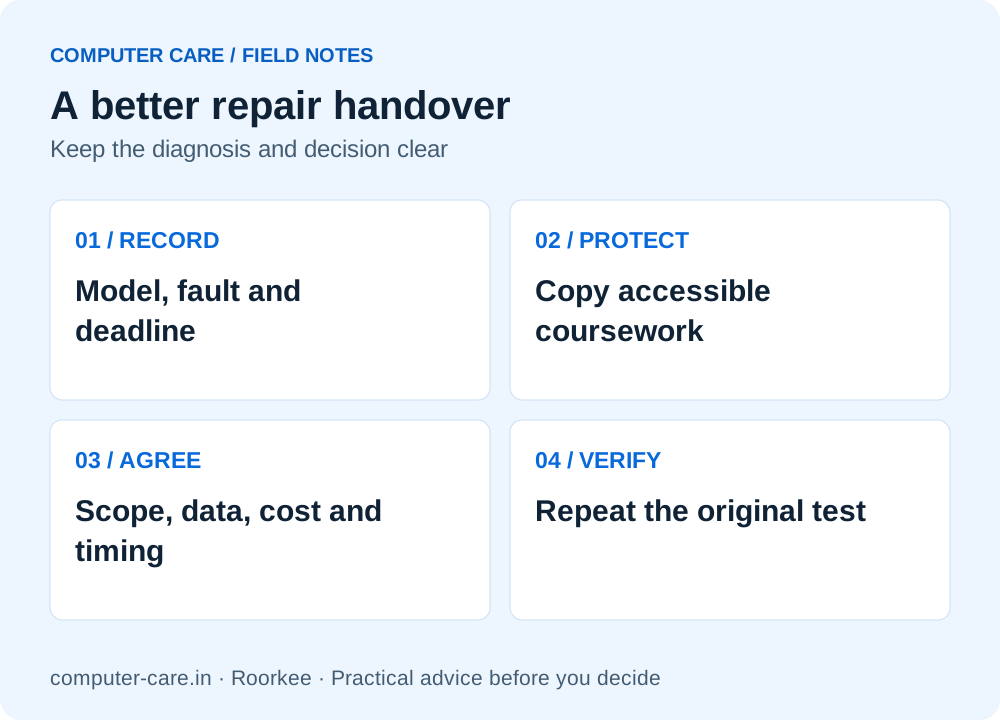
A better repair handover
YOUR QUESTIONS, ANSWERED
Useful details before you call
Can I get same-day laptop repair near IIT Roorkee?
Call with the model, symptoms and deadline. Diagnosis, compatible parts and testing determine timing. No same-day completion is promised by this guide.
Does a black screen mean the motherboard has failed?
No. Describe power indicators, startup behaviour and any external-display observation. Several causes can produce a black screen; diagnosis is needed before buying a board or display.
Will a repair erase my coursework?
It depends on the work. A reinstall, formatting or storage replacement can affect data. Back up accessible work and agree data handling before approval; recovery is not automatically included.
Can an SSD fix every slow laptop?
No. The proposal should address an identified limitation and be compatible with the model. Memory, software, thermal or platform limits may remain.
Should I use a local shop or manufacturer support?
Check existing cover and the manufacturer’s repair route first. Compare scope, written terms, time and cost for your device. Computer Care is independent and does not claim manufacturer-authorised status here.
Can I get a quote over the phone?
You can discuss symptoms and inspection arrangements. A reliable final quote may require diagnosis and confirmation of the actual replacement part.
What should I bring for a charging fault?
Bring the device and the charger involved, plus the model and a record of when the symptom occurs. Stop using visibly damaged or swollen equipment and seek qualified guidance.
How do I compare repair with selling the laptop?
Obtain a diagnosis and repair quote, then compare a separate condition-based purchase offer with the cost of a suitable replacement. Back up and prepare the device before any permanent transfer.
Sources & further reading
Research checked 8 Nov 2026. Community and directory questions help identify topics; technical guidance comes from the named documentation. They are not evidence of Computer Care prices, inventory or service terms.
- Dell: power, POST, boot and display symptom distinctions ↗Primary documentation; checked 8 Nov 2026
- Dell: checking battery condition ↗Primary documentation; checked 8 Nov 2026
- Dell: swollen battery handling ↗Primary documentation; checked 8 Nov 2026
- Dell: thermal troubleshooting ↗Primary documentation; checked 8 Nov 2026
- Apple: liquid-detection alerts on supported Mac laptops ↗Primary documentation; checked 8 Nov 2026