Computer Care buys used laptops and desktops in Roorkee. For a student replacing a computer or leaving campus, a useful sale starts with an accurate description, a verified backup and a clear handover. This guide explains how to prepare for an assessment and compare an offer without inventing a resale value. An offer depends on the actual device and inspection; submitting details does not guarantee purchase or a fixed price.
Before you decide
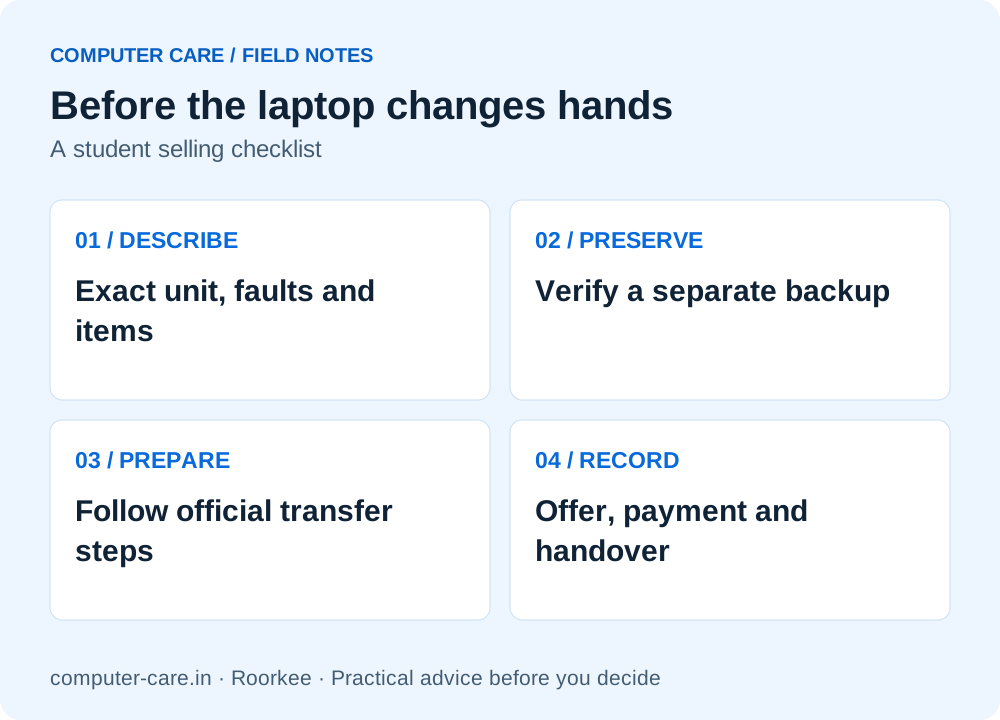
- Prepare exact specifications, condition, included accessories and an honest fault history.
- Verify a separate backup before any reset, account removal or handover.
- Use the appropriate Microsoft or Apple transfer instructions; deleting a few files is not a full preparation plan.
- Agree the actual purchase amount, included items and payment/handover record before transferring ownership.
Prepare a description someone can verify
Write down the full manufacturer and model, processor model, installed RAM and storage, operating system, approximate purchase date and the accessories you will include. Keep the invoice or other ownership information available for the assessment. Do not publish an unredacted invoice, personal account details or a full serial number in an open advertisement.
Photograph the actual unit in ordinary light: screen, keyboard, lid, base, ports and charger. Include clear pictures of damage. If a part was replaced or a fault is intermittent, disclose it. A buyer seeing the actual condition can make a more meaningful offer than someone reading a generic product picture and a processor badge.
For a desktop, list the system unit and each included component separately: monitor, keyboard, mouse, network adapter and cables. Identify whether a graphics card or additional storage is included. Record which items are excluded so the handover does not depend on assumptions.
What affects a used computer’s purchase offer?
| Factor | Evidence to prepare |
|---|---|
| Configuration | Exact processor, RAM, storage and graphics |
| Physical condition | Screen, hinges, case, keys, ports and known damage |
| Operation | Startup, charging, battery condition and reproducible faults |
| Support and suitability | Supported software/platform and upgrade limitations |
| Included items | Working compatible charger, peripherals and ownership documents |
| Repair history | Parts replaced, liquid incidents or other known issues |
Original purchase price is context, not a formula for current resale value. Two computers with the same model name can have different condition, configuration and required work. Ask which observations affect the offer and whether any proposed repair is required before the buyer will proceed.
No local transaction dataset, depreciation percentage or “instant cash” amount is claimed in this guide. A search listing’s asking price is not proof that a comparable machine sold for that amount. Compare real offers for the same configuration and condition, and keep any repair quote separate from the purchase offer.
You do not need to approve a repair merely to hear the terms of a purchase offer. If you are considering repairing before selling, compare the complete repair cost and uncertainty with the actual revised offer, rather than assuming every rupee spent is recovered in the sale.
Before erasing anything: verify your coursework backup
Make a separate copy of work you need to retain and open representative files from another device. Include code repositories with any uncommitted work, local databases, CAD project dependencies, research notes, photographs, downloads and folders on any secondary drive. Check that cloud-only files are available where you need them and that you can access the account independently.
Record the applications you will need on your replacement computer and check how their licences are transferred or deactivated. Make sure a second-factor authentication method is available without the old device. Store recovery information privately; do not include it in a sale listing or give it to the buyer as a substitute for preparing the computer properly.
Inventory all internal and external storage. Erasing the main drive does not establish that a second SSD, memory card or USB drive is clean. If the device contains institute, employer or confidential research data, obtain the applicable data-handling instructions before disposing of it. A normal consumer reset is not a certified sanitisation service.
Preparing a Windows laptop or desktop for transfer
Use Microsoft’s before-sale checklist and Reset your PC instructions for your Windows version. Microsoft describes “Remove everything” and the “Clean data” option for a consumer selling or giving away a PC, and separately explains removing the device from the Microsoft account after backup and reset.
Read the current options carefully and confirm which drives are affected before proceeding. Back up first. Microsoft explicitly says the consumer erasure functionality does not meet government or industry data-erasure standards. It is not a promise of certified destruction of confidential information. For those requirements, seek an appropriate documented sanitisation route.
Keep your own Microsoft credentials private. Do not transfer your personal account to the buyer. Ask how the installed software is licensed and avoid promising that your student or organisational licences can be transferred. At handover, the buyer should not need access to your personal cloud account to use the computer.
Preparing a Mac: use the model-specific Apple route
Apple’s before-sale guidance for a Mac explains the supported transfer route, including Erase All Content and Settings where available and alternative steps where it is not. Eligibility depends on the Mac and software. Use the instructions for your actual device instead of a generic reset video.
Back up first and complete the appropriate account and device-association steps yourself. Do not give a buyer your Apple Account password. If the machine is managed by an institute or employer, ask the owner or administrator about release before offering it for sale; ordinary personal-account sign-out does not establish that organisational management is removed.
This guide does not supply a bypass for account or management locks. If you cannot complete the legitimate transfer preparation, resolve it through the appropriate owner or support route before promising a ready-to-use device.
Inspection, payment and a clear handover record
Arrange the assessment and the included accessories in advance. Keep possession and control of your personal accounts during the process. Ask what device checks are needed, whether any work would carry a charge, and when an actual offer can be confirmed. If you decide not to accept, clarify collection arrangements.
Before final transfer, agree the device and accessory list, condition disclosures, final purchase amount and payment method. Confirm receipt of the agreed payment through your own account or other agreed verification method. A forwarded screenshot alone is not the same as your own confirmation of receipt.
Keep a written purchase/handover record with the device reference, agreed items, amount and date. Remove your own external storage and accessories that were excluded. Do not leave an SD card, USB receiver or personal drive in the machine by accident. Keep only the information necessary for the transaction and avoid making someone else’s identity documents public.
Selling to Computer Care in Roorkee
Call +91 99278 65808 with the full model, configuration, condition, known faults and included accessories. Computer Care buys used laptops and desktops; the purchase decision and amount depend on assessment. No universal price, instant-payment guarantee or obligation to buy is published here.
The shop is at 1st Floor, Nanda Building, 19 Civil Lines, near IIT Roorkee Century Gate, Roorkee, open daily 9am–7pm. Students can discuss selling an old computer and separately compare replacement options. Ask about any specific exchange arrangement directly; confirmed buying of used computers does not automatically mean an exchange-credit scheme is available.
If you are also buying, use the student buying worksheet and actual-unit refurbished checklist. Judge the sale and the replacement as two clear decisions: what you receive for the old device and what the complete next setup costs.
SAVE FOR LATER
Before the laptop changes hands
YOUR QUESTIONS, ANSWERED
Useful details before you call
Does Computer Care buy used laptops and desktops?
Yes. Call with the exact configuration, condition, known faults and accessories. Purchase and the offer amount are subject to inspection; no fixed value is promised.
How much is my old laptop worth in Roorkee?
A reliable offer needs the actual model, configuration, condition and assessment. This article has no verified local transaction dataset and does not invent a depreciation formula.
Can I sell a computer with a fault?
Describe the fault honestly and ask whether the shop will assess that unit. A published buying service is not a promise to buy every damaged or incomplete device.
Should I reset the laptop before backing up?
No. Verify a separate backup and account access first. Then follow the appropriate manufacturer transfer instructions and confirm all storage devices are covered.
Does deleting my files prepare the device fully?
It does not establish that accounts, secondary drives or recoverable data are addressed. Follow the manufacturer’s transfer process and any institutional data-handling requirements.
Can I transfer my student software licence?
Do not assume so. Check the publisher/institute terms for the specific licence. Your personal or organisational credentials should not be handed to a buyer.
Does Computer Care offer exchange credit?
This guide confirms buying of used laptops and desktops, not an exchange scheme. Ask directly about any current replacement or exchange arrangement.
Do I need to share passwords for a purchase assessment?
Keep personal credentials private. Ask what testing is required and arrange an appropriate test or a prepared device. Do not transfer your personal cloud account with the hardware.
Sources & further reading
Research checked 8 Nov 2026. Community and directory questions help identify topics; technical guidance comes from the named documentation. They are not evidence of Computer Care prices, inventory or service terms.
- Microsoft: before recycling, selling or gifting a Windows PC ↗Primary documentation; checked 8 Nov 2026
- Microsoft: reset options and limits of consumer erasure ↗Primary documentation; checked 8 Nov 2026
- Apple: prepare a Mac for sale or transfer ↗Primary documentation; checked 8 Nov 2026