A dependable computer is part of getting through a semester: writing code, handling CAD files, joining calls, finishing reports and handing in work on time. Heading into 2027, uncertain RAM and storage prices are another reason to understand what you already own. Start with the work you need to do, measure where your machine falls short, and compare the cost of a targeted fix with a checked used computer or a suitable new one. This guide shows how to make that decision and keep your work safe along the way.
Before you decide
- Use your exact course software, project size and a repeatable test to decide whether your machine needs work.
- RAM and SSD price forecasts describe different markets; industry contract prices are not retail laptop prices.
- Keep an independent, tested backup and a supported OS. Diagnose heat, power and storage faults before performance upgrades.
- Check the exact used unit, including battery, account locks, licences, supported OS and written terms.
- Compare total cost and useful months, including repair risk and the work you must complete.
The real job of a student computer
A first year student may spend most of the day in a browser, a PDF reader and a code editor. The same student later might need a Windows-only plugin, a virtual machine or a CAD assembly that is larger than the sample file. One machine can be excellent at the first set of jobs and impractical for the second. A public IIT Roorkee student discussion illustrates the question about whether mechanical engineering needs dedicated graphics. The post gives us a question to answer; it does not establish a requirement for every student.
A good computer opens the exact files you need, stays responsive during a call or lab, and finishes the job reliably after it has been running for a while. Check the screen, keyboard, webcam, battery, charger, Wi-Fi, external display and ports you use. Add dependable storage, backups you can restore and a supported operating system. A faster chip does little for a submission lost to a failing drive, a broken charging port or an incompatible course tool.
Write down your semester’s actual workload. Record the required program, release, operating system, plugins, licence, typical project size and where the job can run. Include what stays open alongside it: notes, browser tabs, conferencing, WSL, containers or an emulator. Ask your instructor which versions are required before a major update. Use supported software with security fixes and known compatibility; the newest feature release is not always the right version for an assessed project.
What AI demand could mean for hardware costs in 2027
RAM and SSD storage are different markets. DRAM is working memory; HBM is a type of DRAM used in AI accelerators. Servers also need conventional system memory. NAND flash is persistent storage used in SSDs. An AI server does not use the same memory stick as your laptop. The link is upstream: what manufacturers make, the capacity they commit to particular products and the demand competing for that capacity.
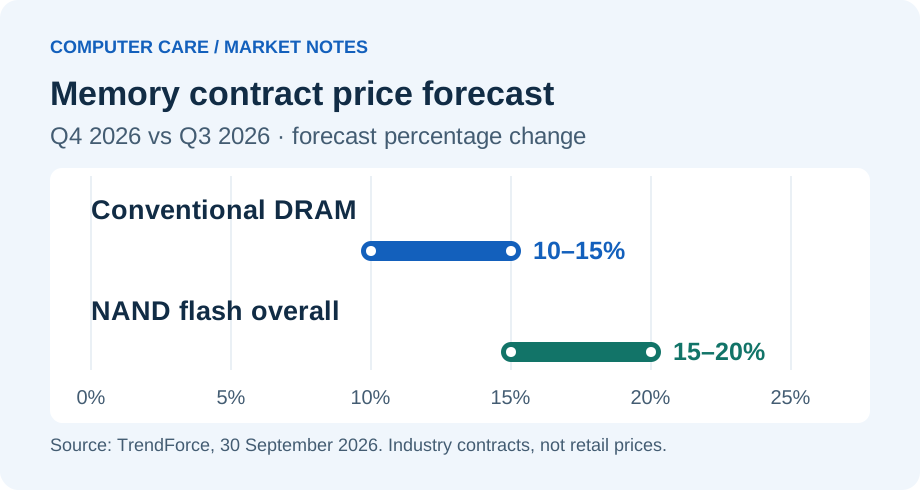
In its September 2026 outlook, TrendForce projected fourth-quarter contract price rises of 10–15% for conventional DRAM and 15–20% for NAND flash overall, compared with the previous quarter. Its October PC DRAM report reported that PC DRAM contract prices were still rising in the fourth quarter, at a slower pace, as suppliers prioritised server output. These are industry contract figures. They do not tell you what a 16 GB module, a 1 TB SSD or a finished laptop costs in Roorkee.
Micron’s June earnings remarks expected tight DRAM and NAND supply-demand conditions beyond calendar 2027. Its September results provides concrete evidence of the supplier’s data centre focus, including shipments of high-performance SSDs for AI caching. A supplier’s outlook is useful evidence about its market, with its own commercial perspective. In July, TrendForce’s July 2026 outlook expected continued tightness in DRAM but saw a possibility of easing NAND supply in the second half of 2027 as output expands. These forecasts agree more clearly on RAM pressure than on SSD supply. The September quarterly forecast and the July 2027 outlook cover different time windows; they can both be true.
What you can do: If the machine is stable and already meets the workload, maintain it and keep cash available for an actual need. If testing shows a compatible RAM or SSD upgrade would remove a bottleneck, get a current written quote for the exact part and installation. If your computer is unsafe, losing data or unable to run compulsory software, do not wait for a predicted price drop. Exchange rates, stock, taxes, promotions and the specifications being compared all affect what you pay. This guide makes no forecast of a particular Indian retail price and assumes no Computer Care stock or discounts.
How much RAM and graphics power does the work need?
Use vendor requirements as a compatibility check, then size the machine for your real files and multitasking. The examples below are Windows requirements checked on 10 November 2026 for planning 2027. Recheck the exact edition, release and plugins before paying. The figures measure installed system RAM; GPU memory is separate on a discrete card. Recommended figures from different publishers are not directly comparable performance scores.
| Application | Minimum or basic | Recommended | What to check too |
|---|---|---|---|
| MATLAB R2026b | 8 GB | 16 GB | Toolboxes, datasets, OS and GPU support. MathWorks strongly recommends SSD storage. |
| AutoCAD 2027 | 16 GB | 32 GB | Graphics API and VRAM. Autodesk gives additional requirements for large datasets, point clouds and 3D work. |
| Android Studio and Emulator | 8 GB Studio only; 16 GB with Emulator | 32 GB | Hardware virtualization, emulator graphics support and room for SDKs and virtual devices. |
| Blender | 8 GB | 32 GB | Windows graphics guidance lists 2 GB VRAM minimum and 8 GB recommended; check renderer support. |
For notes, coding and smaller projects: Test your current computer with your editor, browser, call app and local project running together. An existing 8 GB system can be useful for light work if it remains responsive. If buying for mixed use, 16 GB is a practical starting point to investigate. Running a database, several containers, a VM or an Android emulator changes the decision. Docker’s documentation lists 8 GB of system RAM for Docker Desktop on Windows, alongside other prerequisites; that figure is not a sizing recommendation for your containers.
For CAD, design and simulation: Ask for a representative assembly, render or simulation case. Verify the OS, plugins, graphics support, CPU performance and memory use. If your program can use a GPU, confirm which renderer or solver uses it, how much VRAM it needs, and whether the exact GPU and driver are supported. A larger SSD is useful for project files, but it cannot add GPU memory. A Mac-compatible app may have different features from its Windows version. For example, Autodesk lists its specialized AutoCAD toolsets for Windows.
For AI and data science: Separate writing and debugging code, small experiments and repeated large GPU jobs. The first two may be fine on a CPU or a modest machine. Follow the PyTorch installation guide selector for the OS, accelerator and package your project actually supports. A laptop NPU badge does not establish that a CUDA-dependent course project can run on it. Ask about lab access before buying dedicated hardware for occasional heavy jobs. If you need to run private or restricted research data, confirm where it may be processed before uploading it anywhere.
For IIT Roorkee: The Institute Computer Centre lists software offered through campus arrangements. Confirm personal installation rights, network and seat limits, supported versions, and how you can access it outside lab hours. The PARAM Ganga FAQ describes approved access for eligible research groups. Ask your supervisor or department about access, job queues and any licence limits. Plan for the work you can reliably run on your own device and arrange an alternative for heavier jobs before your deadline.
Run a 30-minute check before you spend
Use a real project as a repeatable test. Start with a verified backup. If the computer is shutting down unexpectedly, showing storage errors or has any sign of battery swelling, do not stress-test it; follow the safety and data steps below first. Set aside a time when a restart will not interrupt a submission.
- Identify the machine. Write down the exact model or service tag for private reference, CPU, installed RAM, storage type and free space, GPU, OS release and charger rating. Compare with the manufacturer’s documentation; do not put serial numbers in public posts. Use the supported charger for plugged-in comparisons and record the power mode.
- Repeat the same job. Open a local project, build or render it, and keep your usual tabs and apps open. Record time to open, time to complete and whether the interface remains responsive. On Windows, open Task Manager with
Ctrl+Shift+Esc. Note CPU, memory, disk active time and GPU activity during the slowdown. Record errors and whether the problem appears only after several minutes. Microsoft’s performance guide explains the Windows tools. - Change one thing and retest. Close one nonessential background process, free space safely or switch to a supported charger, then rerun the same job. Match the file, power mode, application version and test conditions. Note whether it was a first run or a repeat; caches can make the second run faster. Where feasible, compare the median of three runs. Keep an improvement only if it solves a problem you actually notice.
| Observation during the task | What it may mean | What to check next |
|---|---|---|
| Repeated pauses; memory nearly full | Memory pressure and paging may be limiting multitasking. | Check which processes consume memory and whether disk activity rises during the pause. Try the same job with nonessential apps closed. Consider RAM only if the bottleneck persists. |
| Disk active time stays high | A busy mechanical drive, paging, background work or a storage fault. | Check the process and drive health. A failing drive comes before speed tuning. An SSD helps a disk-bound workload; it will not fix an overloaded CPU. |
| One CPU core is busy; overall CPU is lower | The task may be limited by one thread. | Use the logical-processor view and compare with the application’s requirements. More RAM or a faster SSD may do little for this step. |
| GPU memory fills or a GPU job fails | VRAM limit, driver problem or unsupported acceleration. | Check the app’s error and dedicated memory use. Try a smaller project or a supported lab GPU. Check which GPU engine and adapter the app uses. |
| Fast at first, then slow or unstable | Heat, power limits or a fault may reduce sustained performance. | Compare the approved charger and normal power profile. Keep the vents clear. Ask for cooling or power diagnostics if the symptom persists. |
| Local files work but live calls or remote jobs lag | Wi-Fi, internet, VPN or the remote service may be the bottleneck. | Compare an approved second network or wired connection and test local work separately. Check the IIT Roorkee Wi-Fi guide. |
Resource usage is a clue. An isolated spike, a single temperature or a storage-health label cannot diagnose a machine on its own. An example: if the same build takes 120 seconds before a change and 90 seconds afterwards, that is 25% less time on that build. It is not a promise that the whole computer became 25% faster. Save the test notes so you can repeat them after any service.
Maintain it around your semester
Make maintenance part of your work routine, rather than a calendar for opening the laptop. A healthy machine does not need a paid cleaning every fixed number of months. Dust, fan noise, temperature behaviour, the manufacturer’s instructions and the actual fault determine whether internal inspection is useful. Use a hard, level surface and keep vents unobstructed. A blanket under the laptop can block an intake. Under a sustained workload, a working fan may get louder without anything being wrong. Compare behaviour with the same workload and conditions; there is no single temperature cutoff for every model. See Dell’s thermal and safety guide.
| When | What to do | What counts as done |
|---|---|---|
| After important work | Save a version and copy it outside the laptop. Include notebooks, raw data, CAD references and environment files. | Open the copy from another location. Protect restricted project data according to your lab’s rules. |
| Every month or so | Review updates, free storage, battery runtime and startup apps. Keep OS, browser and required security software supported. | Restart when convenient, reopen course software and check that backup jobs still run. Keep recovery information separately. |
| Before a busy semester or deadline | Test a representative project, charger, Wi-Fi, webcam, microphone and display adapter. Check that any licence still activates. | Run through an offline fallback, spare device or lab plan. Avoid elective firmware changes or an OS migration just before the deadline. |
| When symptoms appear | Record the fault, repeat conditions and take a backup when safe. Arrange an inspection for persistent heat, abrupt shutdowns or charger faults. | Get a diagnosis and estimate; confirm the same symptom is resolved under your workload. |
Use the operating system’s built-in tools and your manufacturer’s update channel. Review files before deleting anything, and keep enough room for updates, temporary files, project outputs, caches and SDKs. Remove only apps you understand; do not disable security services to make a benchmark look better. Avoid third-party driver packs, registry cleaners and miracle speed boosters. If you need a firmware update, follow the exact model’s official instructions, have stable power and save the disk-encryption recovery key somewhere accessible off the machine first.
Battery care: On Windows, powercfg /batteryreport creates a report with design capacity and estimated full-charge capacity, where the device supplies these fields. For example, 41 Wh divided by 57 Wh is about 72% of original design capacity. That is an example, not a reading from a tested unit. It is an estimate of remaining energy capacity, not a runtime or safety guarantee. Test unplugged under a normal load; a high-power project can drain even a healthy battery quickly. Follow the manufacturer’s charge limits and use the correct adapter. See Microsoft’s battery report instructions.
Stop and get help if the case or trackpad lifts, you smell burning or chemicals, or the machine remains unusually hot after shutdown. Switch it off and unplug the charger if you can do so safely. Do not press, puncture, charge or attempt to remove a swollen battery yourself. Liquid spills and repeated electrical shutdowns also need diagnosis before testing or charging. Dell’s thermal and safety guide explains when to stop using the machine.
Which upgrades actually help?
RAM: buy capacity for a measured workload
Start with the exact model documentation. Check whether the memory is replaceable, the number of slots, populated modules, supported capacities, memory type and module shape. DDR generations are not interchangeable. A desktop DIMM and a laptop SO-DIMM are different modules. Some laptops have one replaceable slot and some soldered memory; others have no slots. As a concrete example, Lenovo lists two DDR5 SO-DIMM slots on the ThinkPad T14 Gen 5 Intel, while the similarly named ThinkPad T14s Gen 5 has soldered memory. This is a compatibility illustration, not a product recommendation or stock claim.
When you have free capacity but still see slow jobs, investigate CPU, GPU, storage, power and thermals first. If real workloads repeatedly run short of memory, price the compatible configuration and run the same workload after installation. Ask for a memory diagnostic, verify the expected capacity is recognised and test sleep, restart and your normal programs. There is no general speed multiplier for adding RAM.
SSD: choose the right interface and enough space
Moving from a working mechanical drive to a compatible SSD can make opening files, launching apps and starting the system more responsive when disk access is the limit. Moving between two SSDs can primarily buy more room for projects. A faster advertised drive is not always noticeably faster for the same workload. Check whether the system supports a 2.5-inch SATA drive, an M.2 SATA SSD or an M.2 PCIe/NVMe SSD. M.2 is a physical format; it does not guarantee a supported protocol. Check length, mounting point, clearance and whether you are adding a second drive or replacing the only one. See Kingston’s SSD compatibility guide.
Budget space for the OS and apps, active projects, VM or emulator images, outputs, downloads, caches and future updates. A 512 GB SSD may fit one student’s work well; someone storing many datasets or multiple VMs might need more. Count your actual folders and leave room for future projects rather than applying a universal capacity rule. Check migration labour and any enclosure or adapter before comparing prices.
Choose a clean install or clone only after checking disk health, making a separate restorable backup and recording licence and encryption recovery details. A clone can carry old software faults with it. If a drive disappears, produces repeated read errors or makes abnormal mechanical noises, minimise further use; consult a technician about recovery before attempting repeated clones or repair scans. After a migration, confirm boot, activation, files, encryption, updates and your course programs. Keep the old drive secure until the new setup is proven. Do not treat a clone as your only backup.
Cooling, battery and desktop parts solve different problems
A new battery can restore useful unplugged time without making a CPU-bound build faster. If a charger is underpowered or not recognised, diagnose power delivery before buying RAM. If a fan is failing or vents are obstructed internally, ask for inspection before assuming thermal paste is the answer. A service should address a symptom and verify it afterwards. Opening a laptop for routine repasting is not a universal requirement. Check the service manual and warranty conditions before internal work.
Many laptops offer limited CPU or GPU upgrade options. A desktop may have more, but check the motherboard socket and firmware, case clearance, power-supply rating and connectors, and whether parts are proprietary. Small office desktops can have tighter limits than towers. An extra monitor, working webcam or correctly rated charger may improve daily work more than a new processor. If you can do heavy work at a desk, compare the complete cost of a desktop, display, input devices, connectivity and any needed power backup with a portable setup.
For more model checks, read the RAM, SSD and parts guide. For heat, power or shutdown problems, use the repair and diagnosis page.
Protect your work before repairs or upgrades
A computer can feel fast and still be a poor daily choice if it can no longer receive security updates or run supported course tools. Microsoft India lists 14 October 2025 as the standard Windows 10 end-of-support date. Its current India guidance describes consumer Extended Security Updates for eligible enrolled PCs through 12 October 2027. Check actual eligibility and enrolment in Windows Update. ESU provides eligible security updates, with limits; do not assume it includes new features, app compatibility or full support. Commercial and specialised editions follow their own terms. See Microsoft India’s end-of-support guidance.
For a Windows laptop you expect to use beyond that transition, check the exact CPU and use Microsoft’s PC Health Check where applicable. The Windows 11 system requirements include TPM 2.0 and UEFI Secure Boot capability. Adding memory or storage does not make an unsupported processor eligible. A supported Linux distribution can extend the life of a compatible system if your course software, exam tools, Wi-Fi and peripherals work on it. Verify macOS compatibility and release support for the exact Mac as well. Confirm driver, plugin and licence compatibility before moving operating systems.
Back up for a restore, not just for a green sync icon. Keep an independent copy of important files, preferably with version history and an offline copy where appropriate. Restore a few sample files and open them; sync can propagate deletion, and source-control repositories may omit datasets, uncommitted work or CAD dependencies. Save your disk-encryption recovery key separately. Keep university data only on approved storage. CISA’s backup guidance recommends offline, encrypted backups and regular recovery tests.
Before handing over a device: record the fault, note the exact device and included accessories, back up files, and ask what access the technician needs. Avoid handing over a personal cloud, email or university password. If testing requires a login, agree on a suitable temporary local account or test with the technician present. Confirm in writing whether the job could erase data, replace storage or change the OS. If the device will be resold, back up, sign out, remove your account locks and use the manufacturer’s recommended erase procedure before handover. Take unrepairable electronics to an appropriate registered channel; see the Central Pollution Control Board’s e-waste FAQ.
Buying used or refurbished: inspect the exact machine
A used machine can be a good purchase when the exact unit fits your work, has a supported OS path and leaves room in the budget for any repairs. “Refurbished” can describe different levels of testing or part replacement depending on the seller. Ask for written details and compare those details with a new machine of similar capability. A well kept, upgradeable machine with a sound battery may suit you better than a new entry-level configuration. A worn battery, locked firmware or unavailable parts can undo the saving.
- Check identity and condition. Match the exact model, serial number and configuration on the device, firmware and invoice or receipt. Inspect hinges, ports, case, trackpad and screen. Look for signs of a drop, corrosion or swelling. Ask about past repairs, missing parts and liquid damage. Check that the charger is approved for the model and is included if you need it.
- Start it yourself. Ask to see a cold boot and authorised diagnostics. Verify RAM, usable storage, storage health, OS eligibility and the GPU advertised. Try sleep and wake, restart, a short unplugged session and your representative project where practical. Check the charger works under load, the fan behaves normally and the machine does not crash. A short inspection can find obvious faults; it cannot guarantee future reliability.
- Use the parts you will depend on. Type on every key you need; test the touchpad, webcam, microphone, speakers, Wi-Fi, Bluetooth, USB and any important display or charging port. Check brightness, dead pixels and readability on a realistic screen setting. Verify whether a USB-C port supports the display or charging mode you need. For a desktop, check the power supply, GPU, cooling, storage connections and included monitor or peripherals.
- Check account and firmware locks. Confirm the seller can release the device. For former organisation PCs, verify any BIOS password is removed and the device has been deregistered from management, including Windows Autopilot where applicable. A reset alone does not prove that an organisation has released it. Microsoft’s Autopilot deregistration guide explains the owner-side process. For a Mac, confirm Activation Lock is cleared and that setup does not require an earlier owner or an organisation. Agree on seeing normal setup or have a written return remedy if a lock appears. Do not buy a machine whose seller proposes a lock bypass.
- Get the terms in writing. Record exact parts and condition, battery and charger coverage, return period, warranty exclusions, who handles service and whether parts are available. Ask what happens if a fault appears during a project. Take the complete cost to the comparison below, including a battery you already know you will need. Confirm the invoice, OS licensing and whether replacement or refund terms cover an undisclosed defect.
In Roorkee, take your workload list and a non-confidential sample file when comparing a specific unit. Use the full refurbished laptop inspection checklist or compare refurbished desktops. A seller’s short test is useful when paired with clear terms and your own checks during the return window. No tested inventory, fixed battery threshold or warranty length is implied here.
Compare repair, used and new over useful months
Compare options only after they pass your workload, safety and support requirements. Get dated written quotes for the exact models and parts. Count the device or repair, labour, accessories, expected battery or other near-term repairs, migration and any applicable licence or support expense. Subtract resale only if you have a realistic offer. Estimate how long each choice will meet your work with security updates. Record deadline and downtime risks separately if you cannot price them sensibly.
Simple comparison: net cost of the option ÷ expected useful months. Use the same cost assumptions and time horizon for every option; treat the result as a planning aid. If the repair buys only one term and you expect to replace the machine immediately afterwards, also compare repair plus replacement over the same period as buying now. Cost per month alone will not capture data-loss risk, class disruption or limits on cash available today.
| Option | Net cost points | Assumed useful months | Points per month |
|---|---|---|---|
| Repair a supported machine | 30 | 15 | 2.00 |
| Buy a checked used or refurbished machine | 65 | 24 | 2.71 |
| Buy a suitable new machine | 100 | 36 | 2.78 |
Here, the repair has the lowest monthly cost if it provides 15 useful months. Against the new option, it needs at least 11 whole months to come out ahead on this simple metric: 30 ÷ (100 ÷ 36) = 10.8. If it only lasts eight months, its cost becomes 3.75 points per month. In the used example, if the machine needs an extra 10 points of work within the assumed 24 months, the rate rises to 3.13. These are deliberately chosen inputs to show how the decision changes. They are not prices, predicted lifetimes or warranty statistics. Change the inputs using your real quotes and a pessimistic scenario.
Maintain when it is supported, reliable and meets your workload. Upgrade when a measured bottleneck has a compatible and affordable fix. Repair when the fault is understood, the quote is clear and there is a reasonable useful life afterwards. Buy used when a specific unit passes inspection and the complete cost makes sense. Buy new when your required software, reliability, portability, support or availability makes that the better fit. There is no universal percentage at which every repair becomes a bad deal.
Put the plan into practice before the next term
- This week: list course software and confirm with your department what must run locally. Write down the machine’s exact configuration and make a restorable backup. Test one job that represents next term.
- Next: act on the first measured limitation. Clean up a full drive safely, resolve a fault, or check part compatibility before requesting quotes. Arrange lab or remote capacity for work you will not do locally. Confirm it is available before you depend on it.
- Before classes get busy: compare a checked used option, an upgrade or repair and a suitable new option. Decide what you will accept as a successful service result. Test the same project on collection or during the return window.
- Before the first major deadline: repeat the project test, open a restored backup and confirm your charger, account, licence and fallback are ready. Keep those notes for the next semester.
Download the device check and quote worksheet (CSV). It has space for your actual workload, measurements, quotes, support checks and results. Keep it private if it contains device identifiers or project details. If you want help in Roorkee, bring the device, approved charger and notes to Computer Care near Century Gate. You can also prepare a repair enquiry. This guide is independently published by Computer Care; it is not an IIT Roorkee specification or endorsement.
SAVE FOR LATER
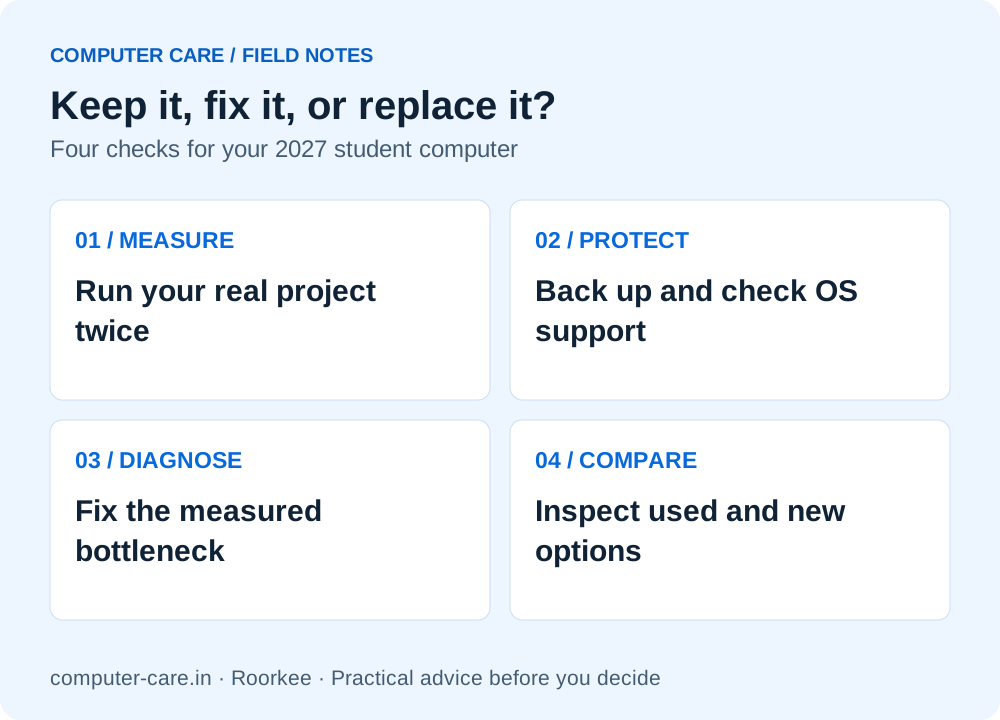
Keep it, fix it, or replace it?
YOUR QUESTIONS, ANSWERED
Useful details before you call
Do IIT students need to buy a new laptop for 2027?
No universal requirement applies. Keep an existing machine that runs the required course tools and is reliable and supported. Measure one realistic project, confirm lab access for occasional heavy jobs and compare targeted fixes before replacing it.
Is 8 GB RAM still usable for college?
It can be adequate for lighter work if your actual applications stay responsive. Some software uses 8 GB as a minimum, while the same publishers recommend more for bigger jobs. Test your workload and check whether you can add RAM before buying a fixed-memory machine.
Should I pick 16 GB or 32 GB for engineering?
Use the exact program and workload. The table shows 16 GB recommended for MATLAB R2026b on Windows and 32 GB recommended for AutoCAD 2027 on Windows. More memory can be worthwhile with larger projects, emulators or VMs, especially if it cannot be upgraded later.
Will adding an SSD make an old laptop faster?
It can improve responsiveness when disk access is the bottleneck, especially when replacing a working mechanical hard drive. It cannot solve an underpowered CPU, insufficient VRAM or repeated thermal shutdowns. Verify the interface and back up before replacing a drive.
How often should a student service a laptop?
Check backups, storage and updates regularly, and test the machine before a busy term. Internal cleaning and hardware work should follow observed symptoms, environment and manufacturer instructions; a healthy laptop does not need automatic paid servicing at a fixed interval.
Are all laptops and SSDs going to get more expensive in 2027?
There is evidence of upstream memory price pressure, especially in DRAM. NAND forecasts differ, and none of the contract figures in this article predicts a particular Indian retail price. Check current quotes when you have a genuine need.
Should I buy an AI laptop to study machine learning?
Start with the course framework and the work you need to run locally. An NPU label does not prove compatibility with a GPU library. Consider a dependable laptop for programming and approved lab or remote computing for larger jobs if access is available.
Can I buy an older Windows 10 laptop and upgrade it later?
Check eligibility for Windows 11 on the exact unit before paying. A RAM or SSD upgrade does not fix unsupported CPU eligibility. Consumer ESU is temporary and requires eligible enrolment. Verify a supported long-term OS and course software path.
Is a used business laptop a safer choice than a new budget laptop?
It can be a better fit, but compare the individual unit: battery, locks, parts availability, supported OS, performance on your project and written return terms. A warranty, sound battery and low downtime may justify paying more for a new model.
Is a desktop a better choice for heavy work?
If you mostly work at one desk, compare desktops on upgradeability, cooling and the complete cost including a display and peripherals. If you need the computer in classes or labs, include portability and battery life in the decision.
What do I bring for a useful repair or upgrade quote?
Bring the exact model, normal charger, symptoms, a note on when the problem occurs, course software requirements and your timeline. Back up files and do not give out your university or email password. Ask what the technician will measure before and after.
When should I avoid testing the laptop myself?
Stop if there is swelling, an unusual chemical or burning smell, a liquid spill or signs of an electrical fault. Do not run stress tests on a computer that may be unsafe. For suspected storage failure, minimise use and discuss data recovery first.
Sources & further reading
Research checked 10 Nov 2026. Community and directory questions help identify topics; technical guidance comes from the named documentation. They are not evidence of Computer Care prices, inventory or service terms.
- TrendForce: fourth-quarter 2026 memory contract price outlook ↗Original market research · 30 Sep 2026 · forecast
- TrendForce: different DRAM and NAND outlooks for 2027 ↗Original market research · 30 Jul 2026 · forecast
- TrendForce: October 2026 PC DRAM contract market ↗Original market research summary · 30 Oct 2026
- Micron: fiscal Q3 2026 earnings call prepared remarks ↗Memory supplier outlook · 24 Jun 2026 · PDF
- Micron: fiscal Q4 and full-year 2026 results ↗Manufacturer results and product disclosures · 30 Sep 2026
- IIT Roorkee Institute Computer Centre: software resources ↗Official campus resource; access conditions apply
- IIT Roorkee: PARAM Ganga account and access FAQ ↗Official campus resource; approval required
- IITR discussion: laptop requirements for mechanical engineering ↗Public student question; not a technical specification or survey
- MathWorks: MATLAB R2026b Windows requirements ↗Software publisher · Windows edition
- Autodesk: AutoCAD 2027 requirements and specialized toolsets ↗Software publisher · Windows and Mac requirements
- Google: Android Studio and Emulator requirements ↗Software publisher · platform-specific requirements
- Blender: official system requirements ↗Software publisher · Windows figures used in the table
- Docker: Docker Desktop for Windows requirements ↗Software publisher · virtualization and RAM requirements
- PyTorch: installation and supported compute platforms ↗Framework documentation · CPU, CUDA and ROCm options
- Microsoft India: Windows 10 support and consumer ESU ↗Operating-system vendor · India guidance
- Microsoft: Windows 11 system requirements ↗Operating-system vendor · eligibility and PC Health Check
- Microsoft: diagnosing slow Windows PCs ↗Operating-system vendor · Task Manager and storage tools
- Microsoft: battery care and battery report ↗Operating-system vendor · Windows battery reporting
- Dell: thermal troubleshooting and battery safety ↗Manufacturer support · thermal symptoms and safety
- Kingston: SATA and M.2 SSD compatibility ↗Storage manufacturer · interface and physical fit
- Lenovo PSREF: ThinkPad T14 Gen 5 Intel ↗Exact-model example · two memory slots
- Lenovo PSREF: ThinkPad T14s Gen 5 ↗Exact-model example · soldered memory
- CISA: #StopRansomware Guide ↗Public security guidance · offline backups and restores · PDF
- Microsoft: Windows Autopilot deregistration ↗Operating-system vendor · former organisation devices
- Apple: Activation Lock for Mac ↗Manufacturer support · account lock and release
- Central Pollution Control Board: e-waste FAQs ↗Indian government guidance · registered recycling · PDF